
Integrations
Connect your CRM, database, or spreadsheet to generate dynamic PDFs with real data. This guide covers all supported integrations and how to set them up.
Overview
Our platform supports five data source integrations:
| Integration | Description | Best For |
|---|---|---|
| Salesforce | Full CRM integration with OAuth | Sales teams, enterprise |
| HubSpot | CRM integration via API token | Marketing, sales teams |
| Airtable | Flexible database integration | Teams, projects, operations |
| SQL Database | Direct database connection | Custom data, legacy systems |
| Google Sheets | Spreadsheet integration | Simple data, quick setup |
Salesforce Integration
Overview
Connect your Salesforce org to access all your CRM data for document generation. This includes:
- Standard and custom objects
- Related records and lookups
- Child relationships for tables
- File attachment capabilities
Prerequisites
Before connecting Salesforce, you need to create a Connected App in your Salesforce org. This requires Salesforce administrator privileges.
Creating a Salesforce Connected App
Follow these steps to create and configure a Connected App:
Step 1: Access App Manager
- Log in to Salesforce as an administrator
- Click the gear icon (⚙️) in the top-right corner
- Select Setup
- In the Quick Find box, type App Manager
- Click App Manager under Apps
Step 2: Create a New Connected App
- Click New Connected App in the top-right corner
- Fill in the Basic Information:
- Connected App Name:
PDF Generator(or your preferred name) - API Name: This auto-fills based on the name
- Contact Email: Your email address
- Connected App Name:
Step 3: Configure OAuth Settings
-
Check Enable OAuth Settings
-
Set the Callback URL to:
https://datatopdf/api/salesforce/callback -
Select the following OAuth Scopes (move from Available to Selected):
Access and manage your data (api)Perform requests on your behalf at any time (refresh_token, offline_access)Access your basic information (id, profile, email, address, phone)Full access (full)- Optional but recommended for full functionality
-
Leave other settings as default:
- Require Secret for Web Server Flow: Checked (default)
- Require Secret for Refresh Token Flow: Checked (default)
-
Click Save
Step 4: Wait for Activation
After saving, Salesforce displays a message that changes can take up to 10 minutes to take effect. In practice, it's usually ready within 2-5 minutes.
Step 5: Retrieve Your Credentials
- After saving, click Continue to view the Connected App details
- Click Manage Consumer Details (you may need to verify your identity)
- Copy and save these values:
- Consumer Key (this is your Client ID)
- Consumer Secret (this is your Client Secret)
Step 6: Configure OAuth Policies (Recommended)
After creating your Connected App, configure the OAuth policies for easier connectivity:
- From the Connected App page, click Manage
- Click Edit Policies
- Configure the following settings under OAuth Policies:
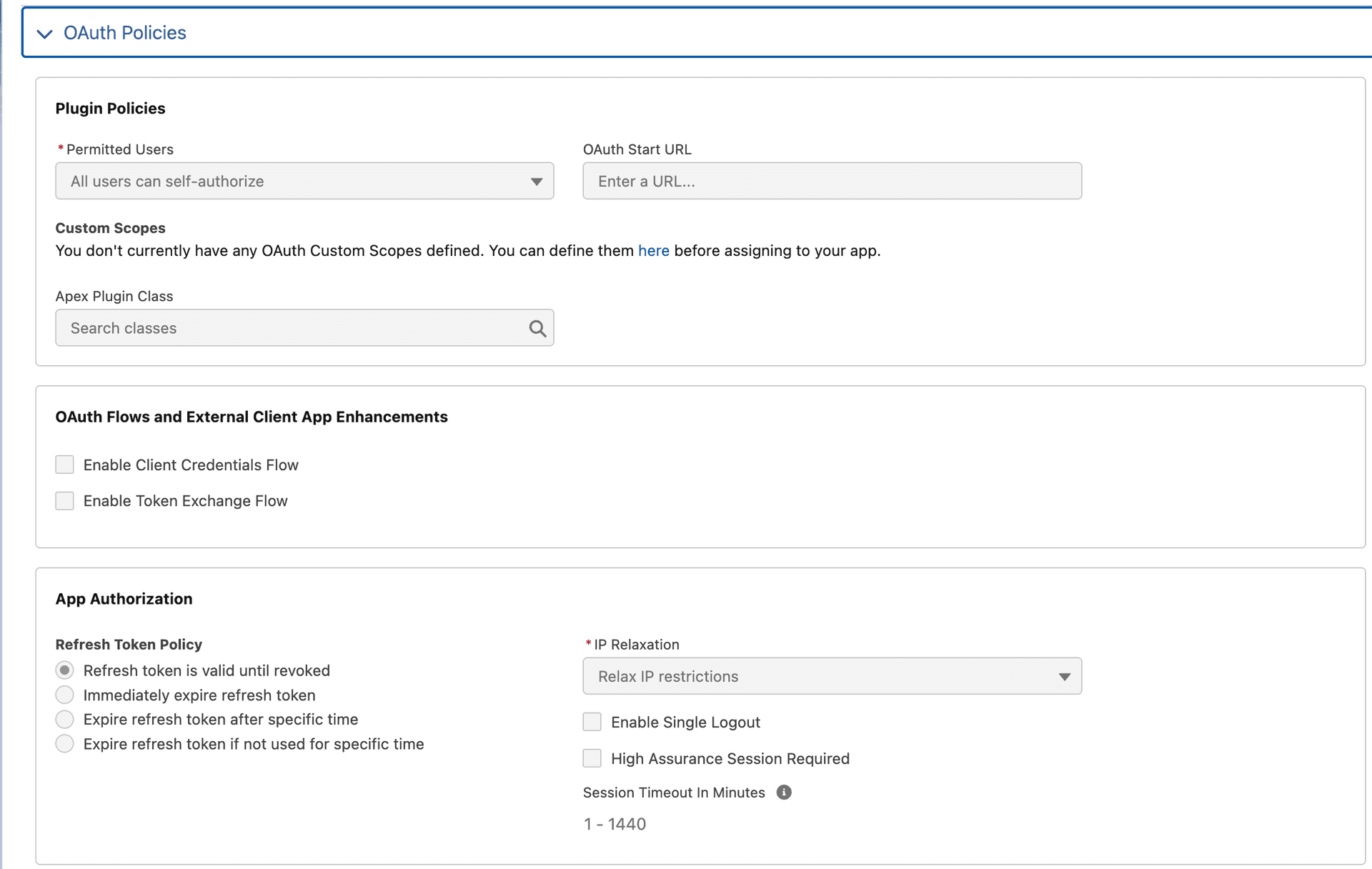
Key settings to configure:
| Setting | Recommended Value | Description |
|---|---|---|
| Permitted Users | All users can self-authorize | Allows any user in your org to connect |
| IP Relaxation | Relax IP restrictions | Avoids IP whitelisting issues |
| Refresh Token Policy | Refresh token is valid until revoked | Keeps the connection active long-term |
- Enable the following Flows :
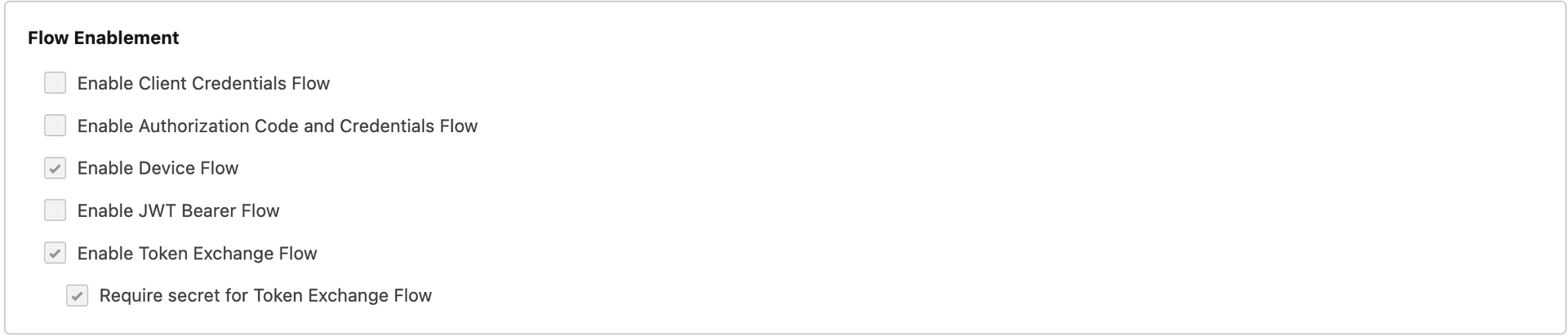
- Click Save
Connecting Salesforce
Once your Connected App is created, you can connect it to the PDF Generator:
Step 1: Enter Credentials
- Go to Settings → Salesforce
- Enter your Client ID (Consumer Key)
- Enter your Client Secret (Consumer Secret)
- Click Save Credentials
Step 2: Authorize Access
- Click Connect Salesforce
- You'll be redirected to Salesforce login
- Enter your Salesforce credentials
- Review the permission request
- Click Allow to authorize
Step 3: Verify Connection
- You'll be redirected back to the app
- The status should show "Connected"
- Your Salesforce instance URL will be displayed
What Gets Connected
| Feature | Description |
|---|---|
| Objects | Access all standard and custom objects you have permission for |
| Fields | All fields on accessible objects |
| Relationships | Lookup and master-detail relationships |
| Child Objects | Related lists (Contacts on Account, Line Items on Opportunity) |
| Records | Query and select records for PDF generation |
Selecting an Object
When creating a template:
- Choose Salesforce as your data source
- Select the object type (Account, Contact, Opportunity, etc.)
- Available fields for that object are loaded automatically
Standard Objects
Common Salesforce objects available:
- Account
- Contact
- Opportunity
- Lead
- Case
- Quote
- Order
- Custom Objects (ending in
__c)
Field Access
Fields available depend on your Salesforce permissions:
- Standard fields (Name, Email, Phone, etc.)
- Custom fields (My_Field__c)
- Formula fields
- Lookup fields
Parent Relationships
Access related record data:
{{Account.Name}}          → Parent account name
{{Owner.Name}}            → Record owner
{{CreatedBy.Name}}        → User who created record
{{Account.Owner.Name}}    → Account owner's name
Child Relationships
For tables, access related records:
{{OpportunityLineItems.Name}}      → Line item names
{{Contacts.Email}}                  → Related contact emails
{{Cases.Subject}}                   → Related case subjects
Uploading PDFs to Salesforce
Generated PDFs can be uploaded directly to Salesforce:
- Generate your PDF
- Click Upload to Salesforce
- Select the record to attach to
- The PDF is saved as a File attachment
Disconnecting Salesforce
- Go to Settings → Integrations
- Find Salesforce
- Click Disconnect
- Confirm the disconnection
Note: Templates using Salesforce data will no longer work until reconnected.
Troubleshooting Salesforce
"Missing credentials" Error
- Ensure you've saved your Client ID and Client Secret before clicking Connect
- Verify the credentials are for the correct Salesforce org (Production vs Sandbox)
"Invalid client credentials" Error
- Double-check your Consumer Key and Consumer Secret
- Ensure the Connected App has been activated (wait 2-10 minutes after creation)
- Verify you're using Production credentials for Production orgs, and Sandbox credentials for Sandbox orgs
"Redirect URI mismatch" Error
- The Callback URL in your Connected App must exactly match your application URL
- Check for trailing slashes -
https://app.com/callbackis different fromhttps://app.com/callback/ - For local development, ensure you're using
http://localhost:3000/api/salesforce/callback
"Access denied" or Authorization Failed
- Your Salesforce admin may have restricted OAuth access
- Check if your profile has "API Enabled" permission
- Verify the Connected App is assigned to your profile or permission set
Connection Failed
- Verify Salesforce credentials
- Check if your org allows OAuth
- Contact your Salesforce admin if access is restricted
Missing Objects/Fields
- Check your Salesforce profile permissions
- Verify field-level security settings
- Ensure objects are visible in your profile
Session Expired
- Reconnect your Salesforce account
- Token refresh is automatic, but may occasionally fail
"IP not whitelisted" Error
- Set IP Relaxation to "Relax IP restrictions" in Connected App policies
- Or add your server's IP address to the trusted IP ranges
See also: Salesforce API Integration for programmatic PDF generation using Apex, Flow, or the REST API.
HubSpot Integration
Overview
Connect HubSpot to access contacts, companies, deals, and more for document generation.
Prerequisites
Before connecting HubSpot, you need to create a Private App in your HubSpot account. This requires HubSpot Super Admin privileges.
Creating a HubSpot Private App
Follow these step-by-step instructions to create and configure a Private App:
Step 1: Access Private Apps Settings
- Log in to your HubSpot account as a Super Admin
- Click the Settings icon (⚙️) in the main navigation bar
- In the left sidebar, navigate to Integrations → Private Apps
- Click Create a private app
Step 2: Configure Basic Information
- Enter a Name for your app (e.g.,
PDF Generator) - Optionally, add a Description (e.g., "Generates PDF documents from CRM data")
- Upload a Logo (optional)
Step 3: Configure Scopes
Click the Scopes tab and enable the following permissions:
CRM Scopes (under "CRM"):
| Scope | Permission Level | Purpose |
|---|---|---|
crm.objects.contacts.read | Read | Access contact records |
crm.objects.companies.read | Read | Access company records |
crm.objects.deals.read | Read | Access deal records |
crm.objects.line_items.read | Read | Access deal line items |
crm.objects.quotes.read | Read | Access quote records (optional) |
crm.objects.owners.read | Read | Access owner information |
crm.schemas.contacts.read | Read | Access contact properties |
crm.schemas.companies.read | Read | Access company properties |
crm.schemas.deals.read | Read | Access deal properties |
Files Scope (under "Files"):
| Scope | Permission Level | Purpose |
|---|---|---|
files | Read/Write | Upload generated PDFs as attachments |
Tip: To find scopes quickly, use the search box at the top of the scopes list.
Step 4: Create the App
- Review your configuration in the Overview tab
- Click Create app in the top-right corner
- A dialog will appear with important information about your access token
Step 5: Copy Your Access Token
- In the dialog that appears, you'll see your Access Token
- Click Copy to copy the token to your clipboard
- Save this token securely - you won't be able to see it again!
⚠️ Important:
- The access token is shown only once. If you lose it, you'll need to create a new one.
- Keep your access token confidential. Never share it publicly or commit it to version control.
- Treat this token like a password.
Step 6: Rotate Token (If Needed)
If you need to generate a new token:
- Go to Settings → Integrations → Private Apps
- Click on your Private App name
- Go to the Auth tab
- Click Rotate token
- Copy and save the new token
- Update your application with the new token
Connecting HubSpot
Once your Private App is created, connect it to the PDF Generator:
Step 1: Navigate to Settings
- Go to Settings → HubSpot
- You'll see a form to enter your access token
Step 2: Enter Your Access Token
- Paste your Private App Access Token in the input field
- Click Connect or Save
- The system will validate your token
Step 3: Verify Connection
- If successful, the status will show "Connected"
- You can now use HubSpot data in your templates
Required Scopes Summary
Your HubSpot private app needs these scopes at minimum:
crm.objects.contacts.readcrm.objects.companies.readcrm.objects.deals.readcrm.objects.line_items.read(for deal products)files(for file uploads)
Using HubSpot Data
Available Objects
- Contacts: Individual people
- Companies: Organizations
- Deals: Sales opportunities
- Tickets: Support tickets
- Products: Product catalog
- Line Items: Deal line items
HubSpot Properties
Access standard and custom properties:
{{firstname}}
{{lastname}}
{{email}}
{{company}}
{{dealname}}
{{amount}}
Associations
Access related records for tables:
{{contacts.firstname}}     → Associated contacts
{{line_items.name}}        → Deal line items
{{companies.name}}         → Associated companies
Uploading to HubSpot
Generated PDFs can be attached to HubSpot records:
- Generate your PDF
- Click Upload to HubSpot
- Select the record type and record
- The PDF is saved as an engagement/attachment
Troubleshooting HubSpot
"Invalid Token" or "Unauthorized" Error
- Verify you copied the complete access token (they are long strings)
- Regenerate your private app token if it may have been compromised
- Check that the token hasn't been rotated or the app deleted
- Ensure you're using the access token, not the app ID
"Insufficient Scopes" Error
- Go to your Private App settings and verify all required scopes are enabled
- After adding scopes, you may need to rotate the token
- The most common missing scope is
filesfor PDF uploads
"Private App Not Found"
- Ensure you're logged into the correct HubSpot portal
- Verify the Private App hasn't been deleted
- Check if another admin may have modified the app
Missing Properties/Fields
- Ensure properties exist in your HubSpot portal
- Use internal property names, not display labels (e.g.,
firstnamenot "First Name") - Check that your private app has read access for the relevant object schemas
- Custom properties require
crm.schemas.[object].readscope
Cannot Upload Files
- Verify the
filesscope is enabled on your Private App - The scope needs both Read and Write permissions
- Check that your HubSpot subscription includes file uploads
Rate Limiting Errors
- HubSpot has API rate limits based on your subscription tier
- Reduce the frequency of requests or implement request queuing
- Consider upgrading your HubSpot subscription for higher limits
Token Expired
- HubSpot Private App tokens do not expire automatically
- If you're seeing expiration errors, the token may have been manually rotated
- Create a new token or check with your HubSpot admin
See also: HubSpot API Integration for programmatic PDF generation using workflows and the API.
Airtable Integration
Overview
Connect Airtable to access your bases, tables, and records for document generation. Perfect for:
- Project management data
- Operations workflows
- Team collaboration databases
- Custom business processes
Prerequisites
Before connecting Airtable, you need to create a Personal Access Token in your Airtable account.
Creating an Airtable Personal Access Token
Follow these steps to create and configure a Personal Access Token:
Step 1: Access Token Settings
- Log in to your Airtable account
- Go to https://airtable.com/create/tokens
- Click Create new token
Step 2: Configure Token Settings
- Enter a Name for your token (e.g.,
PDF Generator) - Configure the Scopes (permissions):
Required Scopes:
| Scope | Purpose |
|---|---|
data.records:read | Read records from tables |
schema.bases:read | List bases and tables |
Optional Scopes (for file uploads):
| Scope | Purpose |
|---|---|
data.records:write | Attach generated PDFs to records |
-
Configure Access:
- Select All current and future bases for full access
- Or select specific bases you want to use with PDF generation
-
Click Create token
Step 3: Copy Your Token
- Your token will be displayed once
- Click Copy to copy the token
- Save this token securely - you won't be able to see it again!
⚠️ Important:
- The access token is shown only once. If you lose it, you'll need to create a new one.
- Keep your access token confidential. Never share it publicly or commit it to version control.
- Treat this token like a password.
Connecting Airtable
Once your Personal Access Token is created, connect it to the PDF Generator:
Step 1: Navigate to Settings
- Go to Settings → Airtable
- You'll see a form to enter your access token
Step 2: Enter Your Access Token
- Paste your Personal Access Token in the input field
- Click Connect or Save
- The system will validate your token
Step 3: Verify Connection
- If successful, the status will show "Connected"
- You can now use Airtable data in your templates
Using Airtable Data
Selecting a Base and Table
When creating a template:
- Choose Airtable as your data source
- Select the Base you want to use
- Select the Table within that base
- Available fields for that table are loaded automatically
Available Field Types
Airtable supports various field types:
| Field Type | Description |
|---|---|
| Single line text | Short text fields |
| Long text | Multi-line text fields |
| Number | Numeric values |
| Currency | Money values |
| Percent | Percentage values |
| Date | Date values |
| Checkbox | Boolean true/false |
| Single select | Dropdown selection |
| Multiple select | Multiple selections |
| Email addresses | |
| Phone | Phone numbers |
| URL | Web links |
| Formula | Calculated fields |
| Lookup | Related record data |
| Rollup | Aggregated data from linked records |
Field Mapping
Airtable field names become merge fields:
{{Name}}
{{Email}}
{{Status}}
{{Due Date}}
{{Total Amount}}
Tip: Use field names exactly as they appear in Airtable, including spaces and capitalization.
Record Selection
Records can be selected by:
- Record ID: Airtable's unique record identifier (e.g.,
recXXXXXXXXXXXXXX) - View filtering: Filter records using Airtable views
Uploading PDFs to Airtable
Generated PDFs can be attached to Airtable records:
- Generate your PDF
- Click Upload to Airtable
- Select the base, table, and record
- Choose the attachment field to upload to
- The PDF is saved as an attachment on the record
Note: The target record must have an Attachment type field to receive files.
Disconnecting Airtable
- Go to Settings → Integrations
- Find Airtable
- Click Disconnect
- Confirm the disconnection
Note: Templates using Airtable data will no longer work until reconnected.
Troubleshooting Airtable
"Invalid Token" or "Unauthorized" Error
- Verify you copied the complete access token
- Regenerate your token if it may have been compromised
- Check that the token hasn't been deleted
- Ensure you're using the access token, not the app ID
"Insufficient Scopes" Error
- Go to your token settings and verify all required scopes are enabled
- After adding scopes, you may need to create a new token
- The most common missing scope is
schema.bases:readfor listing bases
"Base Not Found" or "Table Not Found"
- Ensure your token has access to the specific base
- Verify the base/table hasn't been deleted or renamed
- Check if another admin may have modified permissions
Missing Fields
- Ensure fields exist in your Airtable table
- Use exact field names as they appear in Airtable (case-sensitive)
- Check that your token has read access for the base
Cannot Upload Files
- Verify the
data.records:writescope is enabled on your token - Ensure the target field is an Attachment type field
- Check that the record exists and is accessible
Rate Limiting Errors
- Airtable has API rate limits (5 requests per second per base)
- Reduce the frequency of requests
- Consider implementing request queuing for bulk operations
See also: Airtable API Integration for programmatic PDF generation using Airtable scripts, automations, and the API.
SQL Database Integration
Overview
Connect directly to your SQL database for custom data sources. Perfect for:
- Legacy systems
- Custom applications
- Data warehouses
- Any SQL-compatible database
Supported Databases
| Database | Support Level |
|---|---|
| PostgreSQL | Full support |
| MySQL | Full support |
| SQL Server | Full support |
| SQLite | Full support |
Connecting a Database
Step 1: Navigate to Integrations
- Go to Settings → Integrations
- Find SQL Database
- Click Configure
Step 2: Enter Connection Details
| Field | Description | Example |
|---|---|---|
| Database Type | Select your database type | PostgreSQL |
| Host | Database server hostname | db.example.com |
| Port | Database port | 5432 |
| Database Name | Name of the database | myapp_production |
| Username | Database username | readonly_user |
| Password | Database password | ••••••••• |
| SSL | Enable SSL connection | Yes/No |
Step 3: Test Connection
- Click Test Connection
- Verify the connection succeeds
- If failed, check credentials and network access
Step 4: Save Configuration
- Click Save
- The connection is stored securely
- Password is encrypted
Security Best Practices
- Use a read-only user: Create a dedicated database user with SELECT-only permissions
- Limit table access: Grant access only to tables needed for templates
- Enable SSL: Use encrypted connections when possible
- Use strong passwords: Generate complex passwords for database users
- Network security: Consider IP whitelisting if supported
Using SQL Data
Selecting Tables
When creating a template:
- Choose SQL Database as your data source
- Select the table to use
- Available columns are loaded automatically
Field Mapping
Column names become merge fields:
{{customer_name}}
{{email_address}}
{{order_total}}
{{created_at}}
Record Selection
Records are identified by:
- Primary key (usually
id) - Lookup by column value
Limitations
- No joins: Each table is accessed independently
- Simple tables: Limited support for complex relationships
- Performance: Large tables may have slower field loading
Troubleshooting SQL
Connection Failed
- Verify database credentials
- Check if host allows external connections
- Verify firewall rules and network access
- Ensure database is running
Tables Not Showing
- Check user has SELECT permission on tables
- Verify schema access (for PostgreSQL)
- Ensure tables exist in specified database
Google Sheets Integration
Overview
Connect Google Sheets for simple, spreadsheet-based data sources. Great for:
- Quick data setup
- Non-technical users
- Small datasets
- Marketing campaigns
Connecting Google Sheets
Option 1: OAuth Connection
- Go to Settings → Integrations
- Find Google Sheets
- Click Connect with Google
- Log in to your Google account
- Authorize access to Google Sheets
Option 2: API Key
- Go to Settings → Integrations
- Find Google Sheets
- Enter your Google API key
- Click Save
Using Google Sheets
Setting Up Your Spreadsheet
- Create or open a Google Sheet
- Use the first row for column headers
- Each subsequent row is a record
- Column headers become field names
Example Spreadsheet:
| Name | Company | Amount | |
|---|---|---|---|
| John Doe | [email protected] | Acme Inc | 1000 |
| Jane Smith | [email protected] | Tech Co | 2500 |
Connecting a Spreadsheet
- Copy the spreadsheet URL or ID
- In template creation, paste the spreadsheet ID
- Select the sheet (tab) to use
- Fields are loaded from column headers
Field Names
Column headers become merge fields:
{{Name}}
{{Email}}
{{Company}}
{{Amount}}
Tip: Keep column headers simple—no spaces, special characters, or very long names.
Selecting Records
Records can be selected by:
- Row number: Specify which row (2 = first data row)
- Lookup value: Find row by column value (e.g., Email = "[email protected]")
Best Practices for Google Sheets
- Consistent formatting: Keep data types consistent within columns
- No empty rows: Remove blank rows in your data
- Clear headers: Use descriptive, simple column names
- Share appropriately: Ensure the sheet is accessible to your connected account
- Lock headers: Prevent accidental header changes
Limitations
- Simple structure: One sheet = one table
- No relationships: Cannot link between sheets
- Performance: Large sheets may be slower
- Real-time sync: Data is fetched at generation time
Troubleshooting Google Sheets
Sheet Not Found
- Verify the spreadsheet ID is correct
- Check the sheet is shared with your Google account
- Ensure the sheet hasn't been deleted
Fields Not Loading
- Verify header row is present
- Check for merged cells in headers
- Ensure headers are in row 1
Managing Integrations
Checking Connection Status
- Go to Settings → Integrations
- Each integration shows its status:
- ✅ Connected
- ❌ Not connected
- ⚠️ Error (reconnection needed)
Refreshing Connections
For OAuth integrations (Salesforce, HubSpot, Google):
- Tokens refresh automatically
- If issues occur, disconnect and reconnect
Multiple Integrations
You can connect multiple data sources:
- Each template uses one data source
- Different templates can use different sources
- Team members share connection access
Integration Security
| Aspect | How We Handle It |
|---|---|
| OAuth tokens | Encrypted storage, automatic refresh |
| API keys | Encrypted at rest |
| Database passwords | Encrypted with strong encryption |
| Network | HTTPS for all communications |
Comparing Data Sources
| Feature | Salesforce | HubSpot | Airtable | SQL | Google Sheets |
|---|---|---|---|---|---|
| Setup complexity | Medium | Easy | Easy | Medium | Easy |
| Relationships | Excellent | Good | Good | Limited | None |
| Custom fields | Yes | Yes | Yes | Yes | Yes |
| File upload | Yes | Yes | Yes | No | No |
| Real-time data | Yes | Yes | Yes | Yes | Yes |
| Best for | Enterprise | SMB | Teams/Ops | Custom | Simple |
Next Steps
- Merge Fields - Use data in templates
- Tables - Display related records
- Templates - Create documents
- API Reference - Programmatic access